
How to Fix IPTV Buffering & Freezing: 7 Proven Fixes (2026 Guide)
Updated November 2026 · 7 min read
How to Stop IPTV Buffering in 60 Seconds
- Top Cause: ISP throttling during peak sports hours, or overloaded budget servers lacking multi-location CDNs.
- Fastest Local Fixes: Clear your IPTV app cache on FireStick/Android, switch from 2.4GHz Wi-Fi to wired Ethernet (or 5GHz), and increase stream buffer size to 5–10 seconds in TiviMate or IPTV Smarters.
- Permanent Fix: Test your stream with a premium VPN (to defeat ISP throttling) or switch to a high-capacity anti-freeze server like strongiptv with dedicated 10Gbps load-balanced streams.
- Why Does IPTV Keep Buffering or Freezing?
- Fix 1: Bypass ISP Bandwidth Throttling
- Fix 2: Clear App Cache & Force Stop Background Apps
- Fix 3: Switch to Wired Ethernet or 5GHz Wi-Fi Band
- Fix 4: Increase Stream Buffer Size in Player Settings
- Fix 5: Switch Video Player Decoder (Hardware vs. Software)
- Fix 6: Change Your Device DNS to Cloudflare (1.1.1.1)
- Fix 7: Switch to a Genuine 99.9% Anti-Freeze Server
- Device Troubleshooting Matrix (FireStick, Samsung, LG, Android)
- Frequently Asked Questions (FAQ)
There is nothing more frustrating than watching your favorite football match or UFC main event, only for your screen to freeze in a spinning circle every 30 seconds. While most users blame their home internet, the real reason is often more nuanced: ISP throttling, device memory saturation, or an oversold server with insufficient bandwidth.
In this comprehensive troubleshooting guide, we break down exactly why IPTV buffers and provide 7 tested, step-by-step technical fixes that work across Amazon FireStick, Android TV, Samsung Tizen, LG webOS, and Apple TV.
Why Does IPTV Keep Buffering or Freezing?
IPTV requires a continuous, low-latency data stream. Unlike Netflix or YouTube, which can pre-buffer several minutes of video ahead of time, live television streams real-time data packets with only a few seconds of buffer headroom.
Common causes of IPTV buffering include:
- ISP Deep Packet Inspection (DPI) Throttling: Many major ISPs in the USA, UK, Canada, and Europe automatically throttle IPTV and streaming video ports during evening peak hours and live sports broadcasts.
- Local Device RAM Overload: Streaming sticks like FireStick Lite or budget Android boxes have limited RAM (1GB–1.5GB). Background apps quickly consume available memory.
- Wi-Fi Packet Loss & Jitter: High ping spikes and 2.4GHz interference drop live video packets before they reach your player.
- Oversold Provider Servers: Low-cost providers host thousands of concurrent users on weak shared servers that choke during high-traffic events.
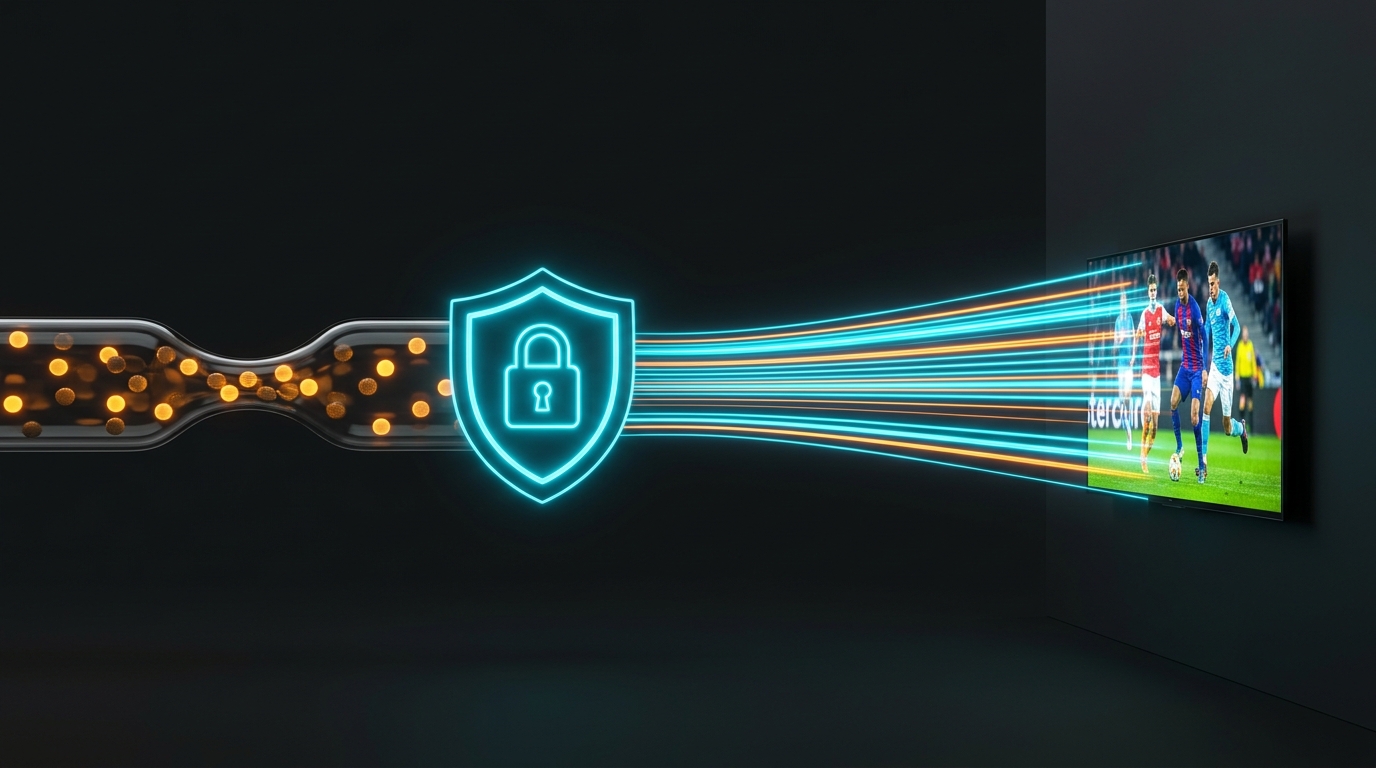
Fix 1: Bypass ISP Bandwidth Throttling (VPN Test)
If your internet speed test shows 100 Mbps on Google, but your IPTV stream is still stuttering, your Internet Service Provider is almost certainly throttling your streaming connection.
The Fix: Install a reputable VPN (such as ExpressVPN, NordVPN, or Surfshark) and connect to a server in your closest major city or a nearby country with open streaming laws (like Switzerland or Netherlands). If the buffering stops immediately with the VPN active, your ISP was intentionally throttling your stream.
Note: At strongiptv, our server architecture is fully VPN-friendly and optimized to work seamlessly with both encrypted VPN tunnels and direct high-speed connections.
Fix 2: Clear App Cache & Force Stop Background Apps
Streaming applications like IPTV Smarters Pro, TiviMate, XCIPTV, and Kodi store channel logos, EPG program guides, and video fragments in local flash memory. When cache files exceed 500MB, the player drops frame rates.
How to clear cache on Amazon FireStick:
- Navigate to Settings > Applications > Manage Installed Applications.
- Select your IPTV app (e.g., TiviMate or IPTV Smarters).
- Click Force Stop.
- Click Clear Cache (do not click Clear Data unless you want to re-enter your credentials).
- Restart your FireStick by holding Select + Play/Pause on your remote for 5 seconds.
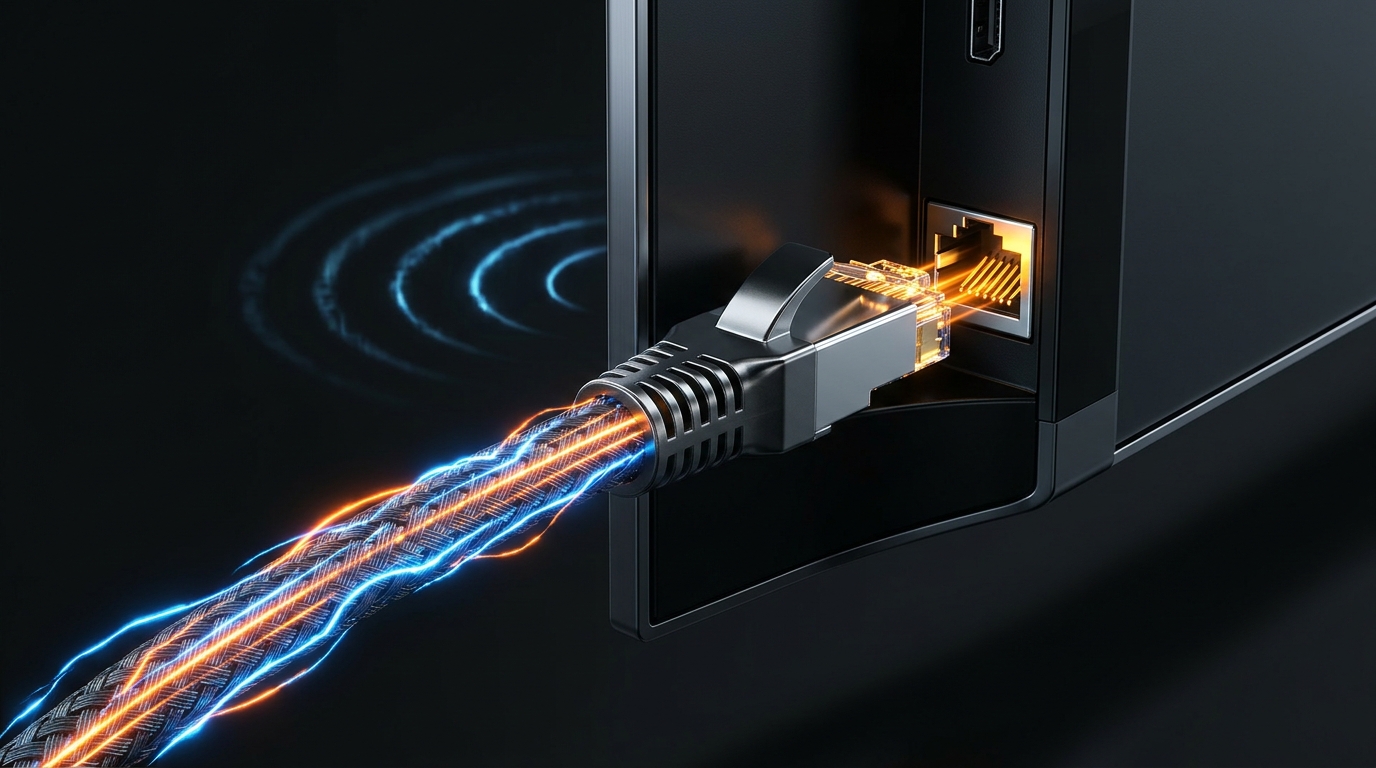
Fix 3: Switch to Wired Ethernet or 5GHz Wi-Fi Band
Live HD and 4K streams cannot tolerate packet drops. The standard 2.4GHz Wi-Fi band is prone to interference from microwave ovens, Bluetooth devices, and neighboring routers.
- Best Solution: Connect an RJ45 Ethernet cable using a USB Ethernet adapter for FireStick or direct LAN port on your Smart TV.
- Second Best: Connect to the 5GHz Wi-Fi network on your router. 5GHz provides much higher throughput and virtually zero interference within 20 feet of the router.

Fix 4: Increase Stream Buffer Size in Player Settings
Most IPTV players default to a "Small" buffer size (0.5 seconds to 1 second) to provide near-instant channel zapping. However, on unstable connections, this causes frequent micro-freezes.
How to adjust buffer size:
- In TiviMate: Go to Settings > Playback > Buffer size > change from Normal to Large or Very Large (adds 3–5 seconds of buffer).
- In IPTV Smarters Pro: Go to Settings > Player Settings > switch stream format to HLS or increase buffer time.

Fix 5: Switch Video Player Decoder (Hardware vs. Software)
Your media player uses either hardware decoding (your device's built-in GPU) or software decoding (CPU) to render video streams. If a channel audio works but video freezes, your decoder is mismatched with the channel's video codec (HEVC H.265 vs H.264).
In player settings, toggle between Hardware (HW), Hardware+ (HW+), and Software (SW). On modern FireStick 4K and Nvidia Shield devices, Hardware decoding with ExoPlayer or VLC engine delivers the smoothest 60FPS playback.

Fix 6: Change Your Device DNS to Cloudflare (1.1.1.1)
Standard ISP DNS servers often block or slow down lookups to streaming CDNs. Changing your DNS improves connection handshake speeds and bypasses domain-level filtering.
| DNS Provider | Primary DNS | Secondary DNS | Key Advantage |
|---|---|---|---|
| Cloudflare | 1.1.1.1 | 1.0.0.1 | Fastest global resolution |
| Google DNS | 8.8.8.8 | 8.8.4.4 | Maximum server compatibility |

Fix 7: Switch to a Genuine 99.9% Anti-Freeze Server
If you have followed all the steps above—good internet speed, Ethernet cable, cleared cache, and tested a VPN—and the stream still buffers during peak hours, the fault lies entirely with your current IPTV provider.
Budget providers host thousands of streams on cheap VPS servers without load balancing. When major Champions League matches, NFL games, or pay-per-view events begin, their server bandwidth caps out and everyone suffers.
Why strongiptv eliminates buffering:
- 10Gbps Dedicated Uplinks: Load-balanced servers situated in Tier-3 data centers across the US and Europe.
- Proprietary Anti-Freeze™ Technology: Dynamic bit-rate scaling that adapts to micro-fluctuations in your connection without stopping the stream.
- 55,000+ Channels & 120,000+ VOD: Over 15,000 4K and 8K options tested daily. Check our full Channel List.
- 99.9% Uptime Guarantee: Redundant server fallbacks ensure your screen never stays black during a game.
Device Troubleshooting Matrix
| Device | Most Common Issue | Recommended App | Quickest Fix |
|---|---|---|---|
| Amazon FireStick 4K / Max | Low storage space & app cache | TiviMate / IPTV Smarters | Clear cache + restart FireStick |
| Samsung Smart TV (Tizen) | Limited internal RAM | IBO Player / Nanomid | Unplug TV from wall for 30s (cold reboot) |
| LG Smart TV (webOS) | Weak Wi-Fi card inside TV | IBO Player / Smart IPTV | Connect via Ethernet cable |
| Android TV / Nvidia Shield | Hardware acceleration glitch | TiviMate Premium | Switch decoder to HW+ with ExoPlayer |
Frequently Asked Questions (FAQ)
How much internet speed is needed to stop buffering?
For standard HD channels, you need at least 15 Mbps. For genuine 4K and 8K streams, we recommend a minimum of 35–50 Mbps dedicated connection. Read our in-depth 8K IPTV Guide for complete resolution requirements.
Will a VPN make my IPTV stream faster?
A VPN will not increase your physical broadband speed, but it completely stops your ISP from inspecting video packets and throttling your bandwidth during live football or pay-per-view events.
Can I test strongiptv before buying a long-term plan?
Yes. We provide a 12-hour high-speed test line so you can verify our anti-freeze servers on your own device and Wi-Fi network before choosing any subscription plan.
Test strongiptv's 10Gbps anti-freeze streaming servers today. 55,000+ live channels, 120,000+ VODs, 4K & 8K Ultra HD with zero freezing.